
Effortless IPTV Setup – How to Quickly Install IPTV Smarters Pro on FireStick (2025) for the Best IPTV UK Experience
What is IPTV SMARTERS PRO?
IPTV Smarters (also known as IPTV Smarters Pro) is a popular IPTV app that allows you to watch live TV, movies, and series using your existing IPTV subscription. It works as an IPTV player and management tool, much like the Smart IPTV app.
The key difference is that while Smart IPTV requires a one-time activation fee, IPTV Smarters offers its core features for free. Premium features are available through the paid version. It’s important to note that IPTV Smarters Pro does not supply its own channels or playlists — you’ll need to use it with an IPTV service provider, such as DOTTV.UK, to start streaming.
To use IPTV Smarters on Firestick or any other device, you’ll need login details from an existing IPTV provider. This app doesn’t include channels on its own — you must already have an active IPTV subscription, such as one from DOTTV.UK.
IPTV Smarters works with IPTV services that support M3U playlists or the Xtream Codes API. One of its biggest advantages is the ability to connect multiple IPTV subscriptions in one place, letting you switch between services without changing apps.
With its simple, user-friendly interface, IPTV Smarters makes browsing channels, movies, and series effortless. If your IPTV plan includes an EPG (Electronic Program Guide), you can easily integrate it to see upcoming programs and schedules.
Quick Features of IPTV Smarters
No channels included – IPTV Smarters is just the player. You’ll need an IPTV subscription (like DOTTV.UK ) to stream live TV, movies, and series.
Works with M3U or Xtream Codes API – Simply log in using your provider’s details.
Multiple accounts supported – Easily manage more than one IPTV subscription from the same app.
All-in-one access – No need to install separate apps for different providers; IPTV Smarters brings them together.
How to Install IPTV Smarters Pro on Firestick
Because IPTV Smarters Pro isn’t on the Amazon App Store, you’ll need to install it manually (sideloading). The process is quick and easy:
Step 1 – Enable Apps from Unknown Sources
By default, Firestick blocks third-party apps. You’ll need to turn this option on in your settings.
Step 2 – Install the Downloader App
The Downloader app (available in the Amazon Store) lets you download APK files directly to your Firestick from trusted websites.
Prepare Your Fire TV for Sideloading IPTV Smarters Pro
By default, Amazon Firestick blocks the installation of apps from outside the Amazon App Store. To install IPTV Smarters Pro manually, you’ll need to change a quick setting and install a helper app called Downloader.
Downloader lets you easily fetch APK files from trusted sources and install them directly onto your Firestick. You can download it for free from the Amazon App Store before moving to the next step.
1. Install the Downloader App
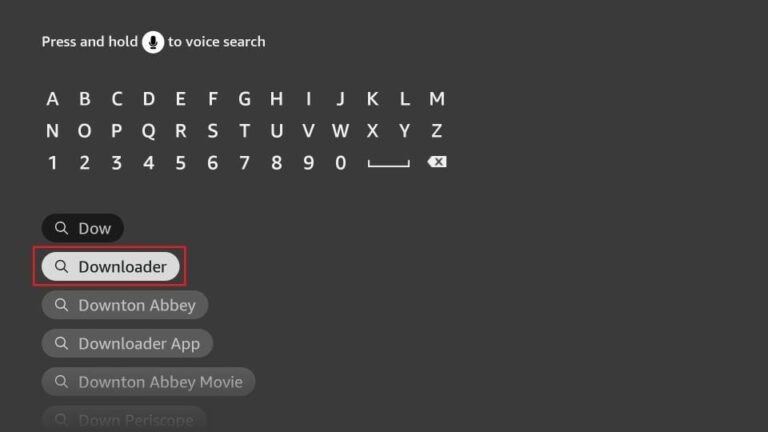
From your Firestick home screen, select the magnifying glass (Search) icon. In the search bar, type “Downloader”. When it appears in the results, click it, then select the Downloader app icon. Click Download (or Get) to install the app on your Firestick.
2. Enable Installation from Unknown Sources
On your Firestick home screen, go to:
Settings → My Fire TV → Developer Options.
Depending on your Firestick model, you’ll see one of two options:
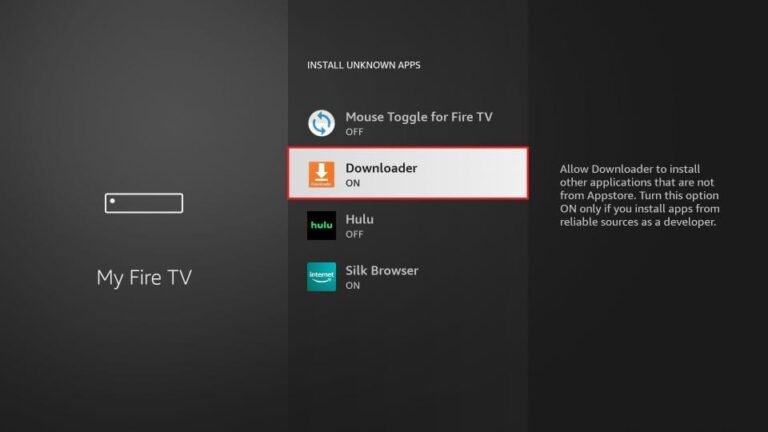
For newer devices – Select Install Unknown Apps, then choose Downloader and switch it to ON.
For older devices – Select Apps from Unknown Sources, then click Turn On when prompted.
Tip: If you don’t see Developer Options in the menu, go to:
Settings → My Fire TV → About, then select Fire TV Stick and click it 7 times to unlock Developer Options.
With these settings adjusted, your Firestick is now ready to install IPTV Smarters Pro and other apps from outside the Amazon App Store.
Sideload IPTV Smarters Pro APK
1. Launch the Downloader app
Open Downloader from your Firestick’s Apps menu. On the left-hand side, make sure Home is selected, then click inside the URL box on the right.
Tip: The first time you open Downloader, you might see a few pop-up prompts asking for permissions or updates. Simply allow the necessary permissions and skip through until you reach the main screen.
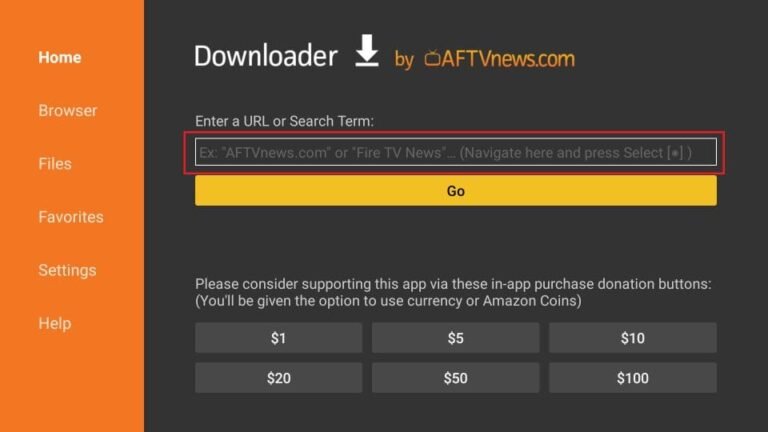
2. Enter the download URL
Type the following link into Downloader’s URL field exactly as shown: firesticktricks.com/smarter
Then press GO to start the download.
Note: This URL is a shortcut and will redirect to an external server hosting the APK file. The site FireStickTricks does not host the file directly.
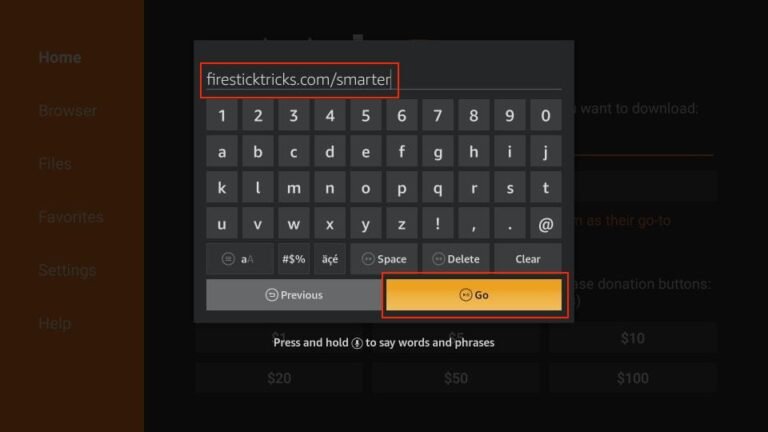
3. Wait a minute or two for the IPTV Smarters Pro APK to download onto your Firestick.
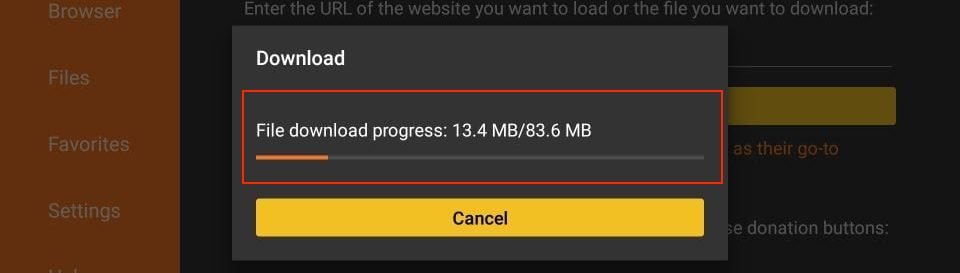
4. Once the download finishes, the Downloader app will automatically launch the installer. Click Install to begin.
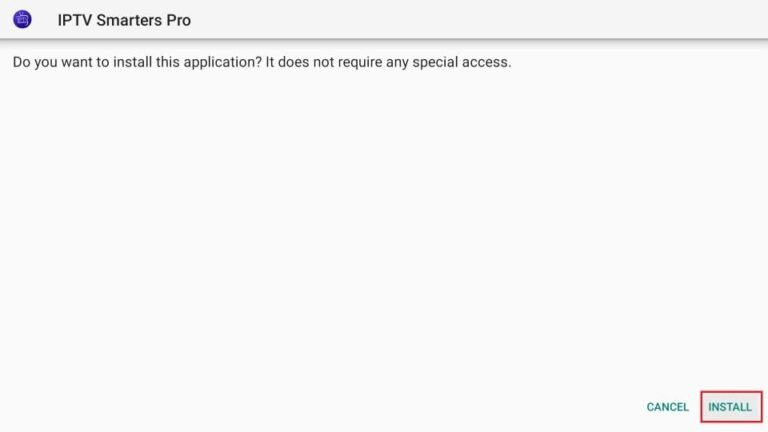
5. Wait for the installation process to complete.
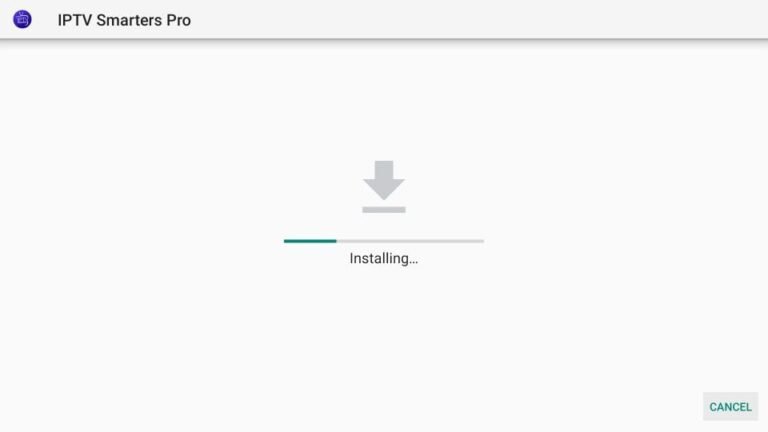
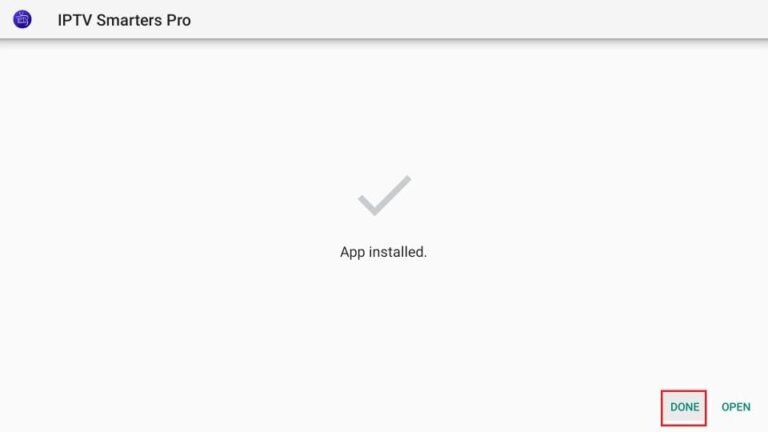
6. When installation is done, you’ll see a confirmation notification. You can click Open to launch IPTV Smarters immediately. It’s best to select Done and then delete the APK file to free up storage space on your Firestick.
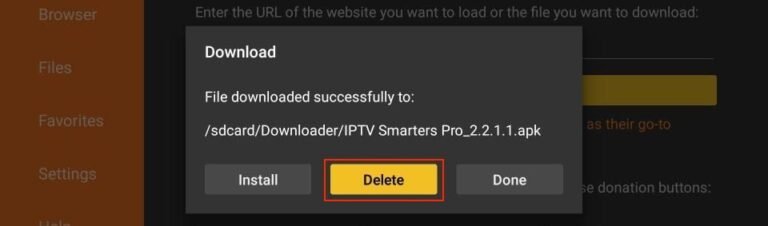
7. If you click DONE above, you will return to the Downloader interface. Click Delete.
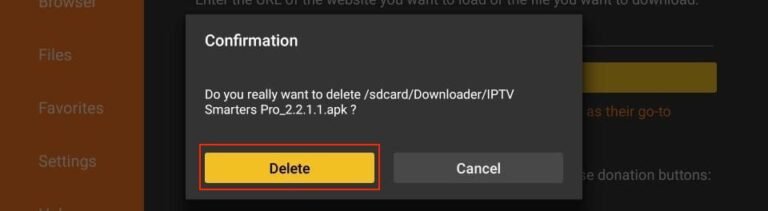
8. Again, click Delete.
You’ve successfully installed IPTV Smarters on your Firestick and are ready to start streaming. Before you dive in, it’s important to remember that online activity can be visible to your ISP, hackers, and other third parties.
Normally, a VPN is the best way to protect your privacy by masking your IP address and bypassing geo-restrictions or ISP throttling. However, with DOTTV.UK, there’s no need to worry about setting up a separate VPN.
Our IPTV subscription automatically includes a built-in VPN service, ensuring your streaming stays private, secure, and buffer-free — all without any extra apps or complicated configurations.
So, just log in, start watching, and enjoy peace of mind knowing your connection is protected by default.
How to Use IPTV Smarters on Firestick
If you plan to use IPTV Smarters regularly, it’s a good idea to create a shortcut on your Firestick home screen for quick access.
Keep in mind, IPTV Smarters itself does not provide any channels or content. It’s simply a media player designed to organize and stream channels from your IPTV subscription. Without a subscription from a provider like DOTTV.UK, the app won’t have any content to play.
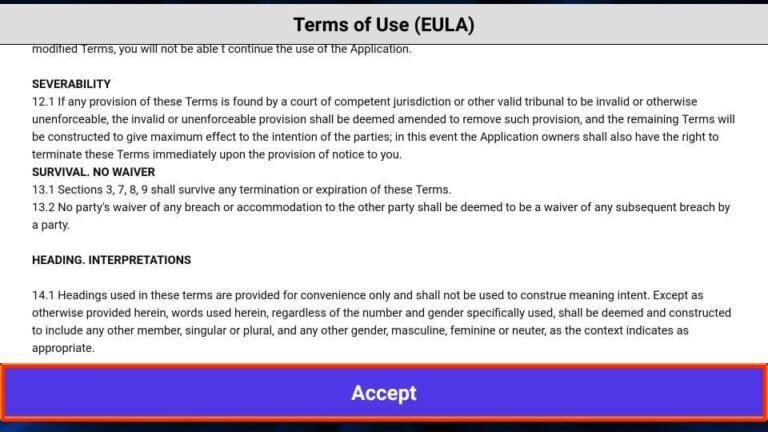
The first time you open IPTV Smarters, you’ll be asked to agree to the Terms of Use. Scroll down and select Accept to proceed.
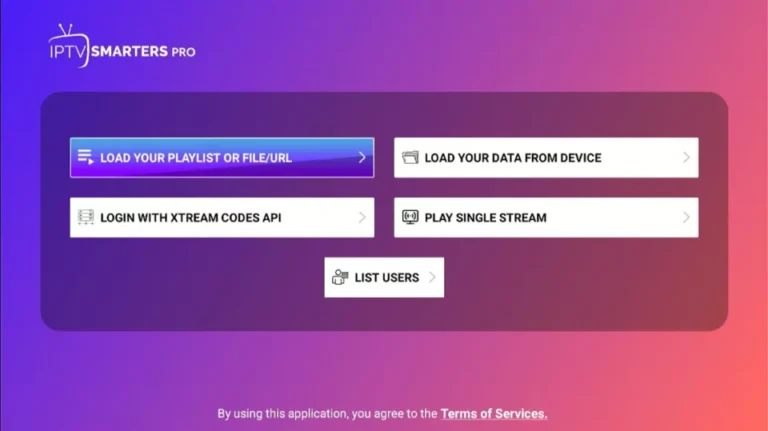
You’ll see this window. This is the IPTV Smarters Pro home screen.
How to Sign In to Your IPTV Service on IPTV Smarters
There are two main ways to log into your IPTV subscription on IPTV Smarters:
Load Your Playlist or File/URL
Login with Xtream Codes API
Load Your Playlist or File/URL
To use this method, your IPTV subscription must support M3U playlists. Not every IPTV provider offers this, so be sure to check with your service.
When you purchase a subscription plan from DOTTV.UK or any IPTV provider, you’ll usually receive an email containing your login details, including your M3U playlist URL and EPG link for the electronic program guide. If you don’t get these links, contact your provider’s support team.
To begin, select Load Your Playlist or File/URL in the IPTV Smarters app.
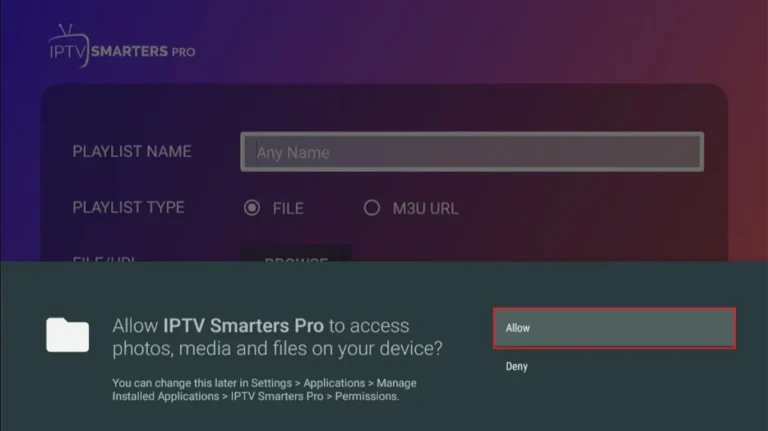
When you select Load Your Playlist or File/URL, the app may request permission to access files or URLs. Simply click Allow to proceed.
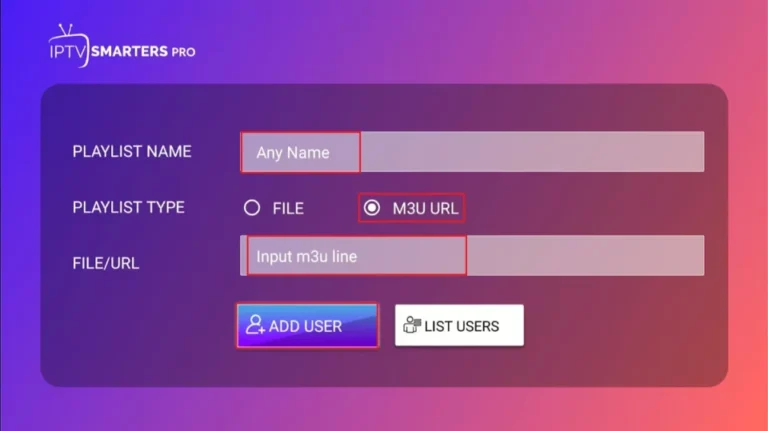
On the next screen, enter your M3U playlist details:
For Playlist Type, select M3U URL.
In the Playlist Name field, enter any name you prefer (for example, “DOTTV.UK”).
In the File/URL box, paste your M3U playlist link provided by your IPTV service.
Once everything is filled out, click the Add User button to save your subscription.
Log In Using the Xtream Codes API
Typing long M3U playlist URLs with a Firestick remote can be tricky and time-consuming. That’s why many users prefer logging in with the Xtream Codes API, which uses shorter, easier-to-enter credentials.
However, be aware that Xtream Codes has faced shutdowns and legal challenges, so availability may vary depending on your IPTV provider.
When you subscribe to a service like DOTTV.UK, you’ll typically receive both the Xtream Codes API details and the M3U playlist URL via email. If you haven’t gotten this information, contact your IPTV provider’s support.
To proceed, select Login with Xtream Codes API in the IPTV Smarters app.
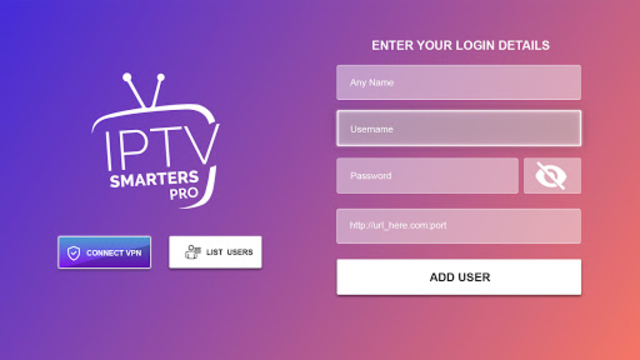
When you select Login with Xtream Codes API, a window will appear asking for your details.
Enter the following information:
Name: Choose any name you like (for example, “DOTTV.UK”).
Username: Provided by your IPTV service.
Password: Provided by your IPTV service.
URL: The API URL sent by your IPTV provider.
After filling in all fields, click Add User to save your subscription and start streaming.
How to Install IPTV Smarters on Android Devices
IPTV Smarters is compatible with Android smartphones, TV boxes, and Smart TVs. Since it’s no longer available on the Google Play Store, you’ll need to sideload the app manually.
Steps to sideload IPTV Smarters on Android:
Open a web browser and go to:
firesticktricks.com/smarterDownload the IPTV Smarters APK file.
Enable your browser or device settings to allow app installations from unknown sources.
Open the downloaded APK file and start the installation.
Once installed, click Done to finish.
How to Install IPTV Smarters on iOS Devices
For Apple users, IPTV Smarters is still available on the App Store. To install on iPhone, iPad, or iPod Touch:
Open the Apple App Store.
Search for IPTV Smarters or Smarters Player Lite.
Follow the on-screen prompts to install the app.
Once installed, you can log in with your IPTV subscription details—just like on Firestick or Android devices.
How to Install IPTV Smarters Pro on Android Devices
The popular IPTV Smarters Pro app is fully compatible with Android phones, TV boxes, and Smart TVs, making it a top choice for IPTV UK users. Since IPTV Smarters Pro is no longer available on the Google Play Store, sideloading is the best way to install the app and enjoy your IPTV UK subscription on any device.
Steps to sideload IPTV Smarters Pro on Android:
Open a browser and visit
firesticktricks.com/smarterto download the latest IPTV Smarters Pro APK.Allow installation from unknown sources in your Android settings.
Install the IPTV Smarters Pro app and open it to access your IPTV UK channels.
How to Install IPTV Smarters Pro on iOS (iPhone, iPad, iPod Touch)
For IPTV UK customers using Apple devices, the official IPTV Smarters Pro app (also known as Smarters Player Lite) is available on the App Store. Simply search and install the app to stream your IPTV UK subscription seamlessly on iOS.