How to Install IPTV Smarters Pro on Windows for IPTV UK
If you want to watch IPTV UK channels on your PC or laptop, IPTV Smarters is one of the easiest and most reliable apps to use. It’s lightweight, user-friendly, and works perfectly with both live TV and on-demand content. In this guide, we’ll walk you through installing and setting up Smarters Pro on a Windows device in just a few minutes.
Why Use IPTV Smarters Pro for Windows?
While there are many IPTV players out there, Smarters stands out for:
-
Clean interface for easy channel browsing.
-
Compatibility with most IPTV UK providers.
-
Multiple device login (you can use the same account on mobile, Smart TV, and Windows).
-
Support for live TV, movies, and series.
Tip : If you plan on streaming sports or live events, Smarters on Windows offers smooth playback when paired with a stable IPTV UK subscription.
Step-by-Step Guide: Install IPTV Smarters Pro on Windows
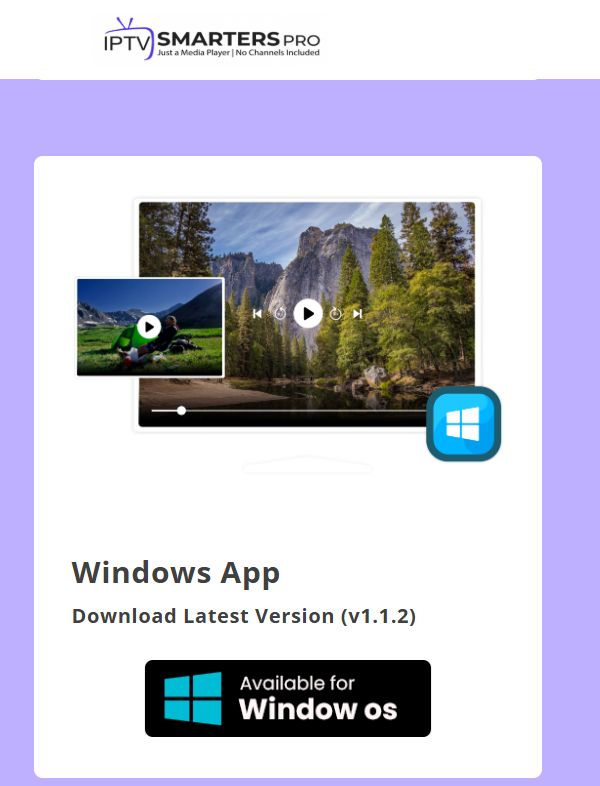
Step 1 – Download IPTV Smarters
Alternative IPTV Players for Windows
While Smarters is the most popular, you can also try:
TiviMate PC (via Android emulator) – For advanced features like multi-view.
VLC Media Player – A simple, free option for M3U playlist streaming.
Hot IPTV Player – Designed for speed and easy EPG management.
 Pricing varies by provider, but IPTV subscriptions usually start from £6–£10/month depending on the plan and features.
Final Thoughts
Installing IPTV Smarters Pro on Windows is quick and simple, and with a reliable IPTV UK subscription, you’ll have access to endless entertainment right on your PC.
 Ready to get started?
Get a stable, high-quality IPTV UK service from DOTTV.UK and enjoy seamless streaming on Windows, Smart TVs, and mobile devices.
Additional Tips for a Smooth IPTV Experience on Windows
While installation is important, the viewing experience largely depends on how you set up your software and environment. One often overlooked step is making sure your PC’s time and date are correct, as some IPTV services rely on these settings to sync streams and avoid authentication errors.
It’s also recommended to keep your firewall settings in check. In some cases, overly restrictive configurations can block video data, causing buffering or failed connections. Allowing your IPTV application through the firewall ensures a smoother stream without constantly tweaking settings.
Another point to consider is storage. If you plan to record shows or events, ensure you have enough free space on your drive. Streaming may not consume storage, but recording high-quality content will. Using an external SSD can help you keep your main drive uncluttered while enjoying faster read/write speeds.
Finally, don’t forget about input devices. A wireless keyboard with a built-in touchpad or a small media remote can make navigation much easier, especially if you’re watching from a distance. This eliminates the need to get up every time you want to pause, skip, or adjust the volume.
Enhancing Your Streaming Setup on Windows
For an even better streaming experience, consider adjusting your display settings. Switching your monitor to a higher refresh rate and enabling “Game Mode” or “Cinema Mode” can make motion appear smoother and colors more vibrant.
Audio is just as important as video. Investing in a pair of quality speakers or a USB soundbar can dramatically improve immersion, especially when watching sports, concerts, or movies. If you prefer private viewing, over-ear headphones can block outside noise and deliver crisp, detailed sound.
Network stability is key for uninterrupted streaming. While Wi-Fi is convenient, using an Ethernet cable directly from your router to your PC ensures a more stable connection and reduces latency. This is especially useful during peak internet usage hours.
Lastly, keep your system clean. Regularly clearing temporary files and closing unused background apps will free up resources, allowing your IPTV app to run more efficiently without sudden slowdowns or lag.